How to download Instagram photos and videos on iPhone using GetMeInsta.com
GetMeInsta.com is a website that lets you save your favourite Instagram photos and videos to your iPhone or iPad without installing any software.
Get the Instagram video link
Instagram has no save button, so you need the post link plus a downloader. The steps are the same for photos, videos, Reels, stories and profile pictures.
Open the Instagram app on your iPhone or iPad, find the post, tap the share icon and choose Copy link.
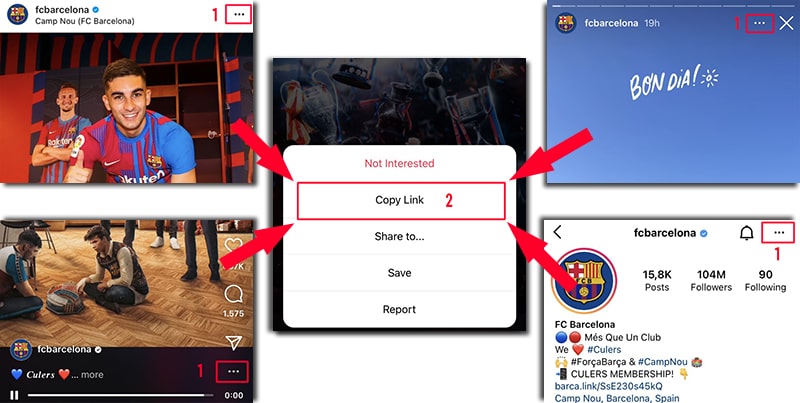
With the link copied, pick one of the two methods below.
Method 1: iOS 13+ and iPadOS 13+ (Safari)
Since iOS 13 Safari ships a download manager, so no extra app is required.
Step 1: open GetMeInsta.com in Safari.
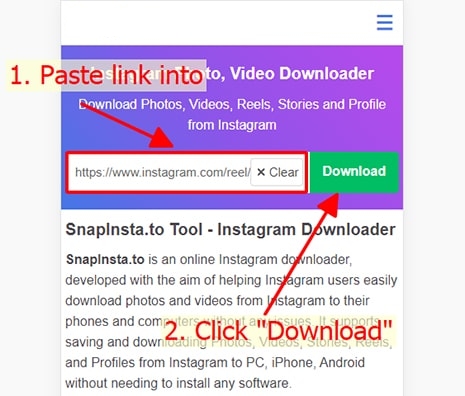
Step 2: paste the Instagram link into the field and press Download.
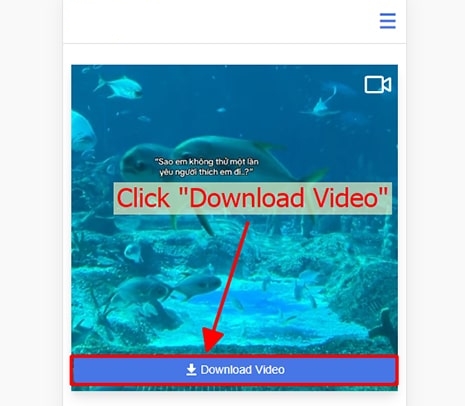
Step 3: the media appears - tap Download video.
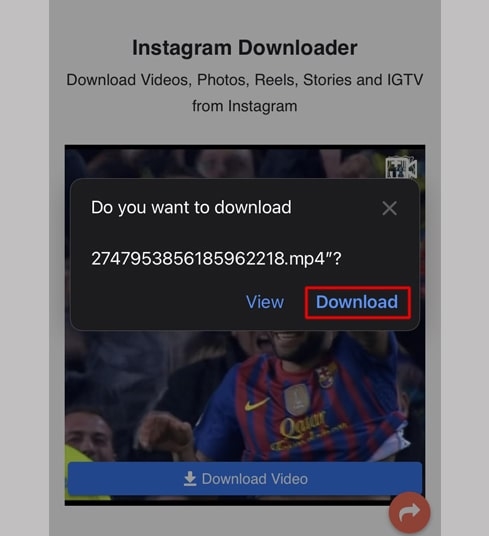
Step 4: confirm with Download in the iOS dialog.
Step 5: the download arrow in the address bar shows the progress.
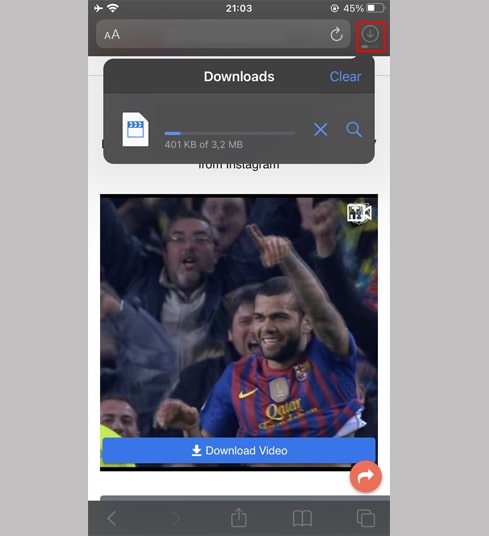
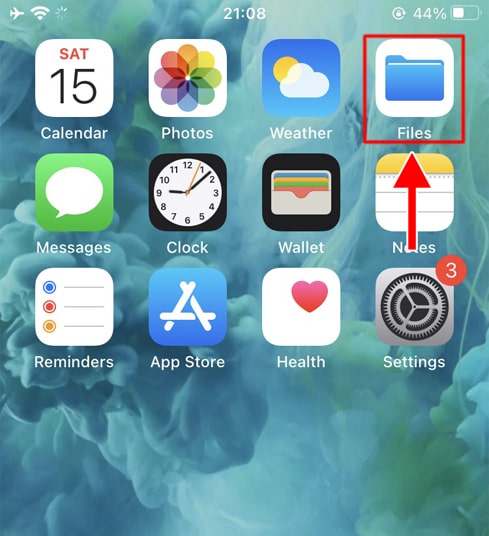
Step 6: open Files - Downloads to find the file.
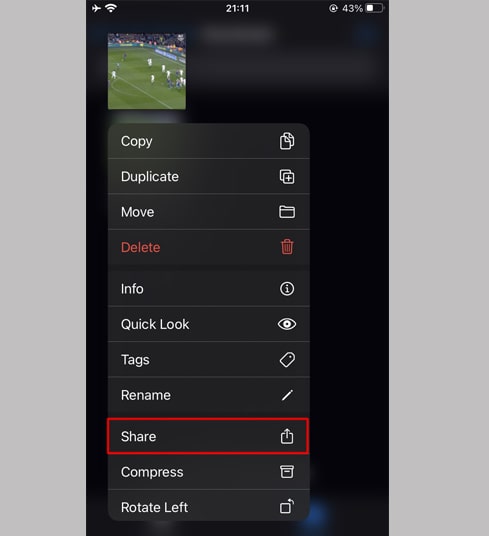
Step 7: long-press the file and choose Share.
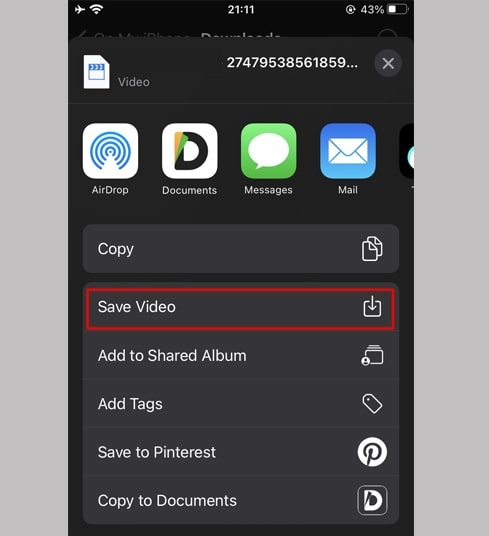
Step 8: tap Save video.
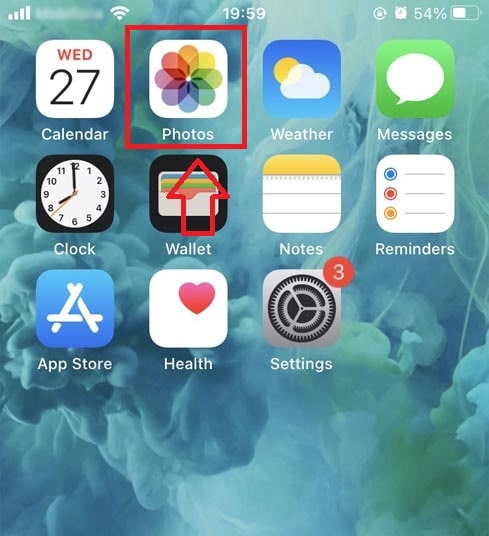
Step 9: open Photos - the video plays offline.
Method 2: Documents by Readdle (iOS 12 and older)
On iOS 12 or older, use the free file manager Documents by Readdle - it includes a small browser.
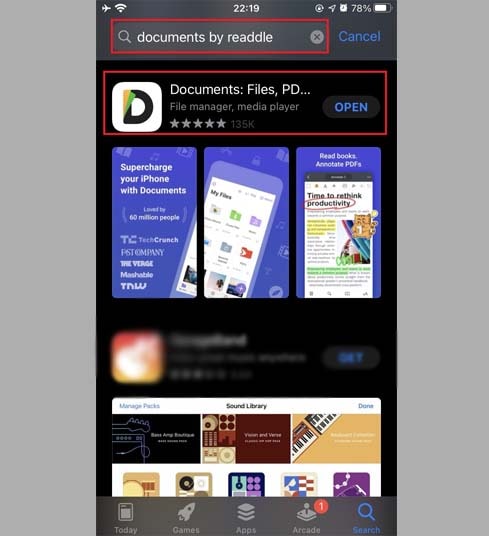
Step 1: install Documents by Readdle from the App Store and open it.
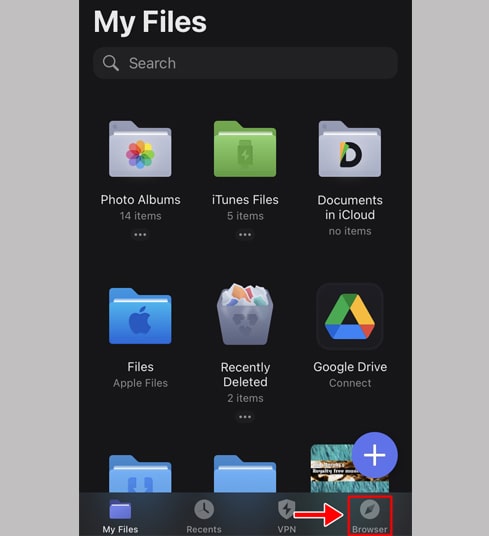
Step 2: tap the compass icon to open its browser and visit GetMeInsta.com.
Step 3: paste the Instagram link and press Download.
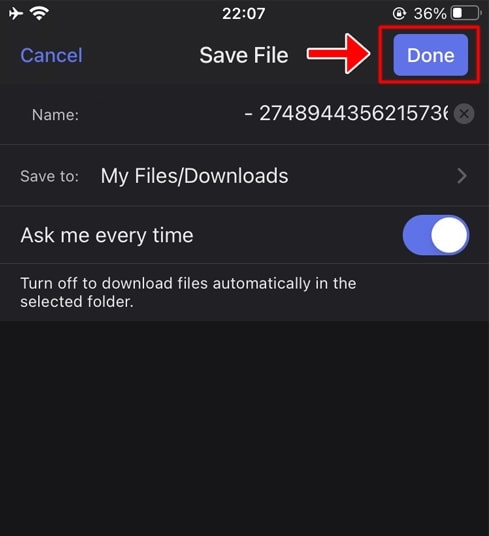
Step 4: tap Download video, rename the file and press Done.
Step 5: open My Files to follow the download.
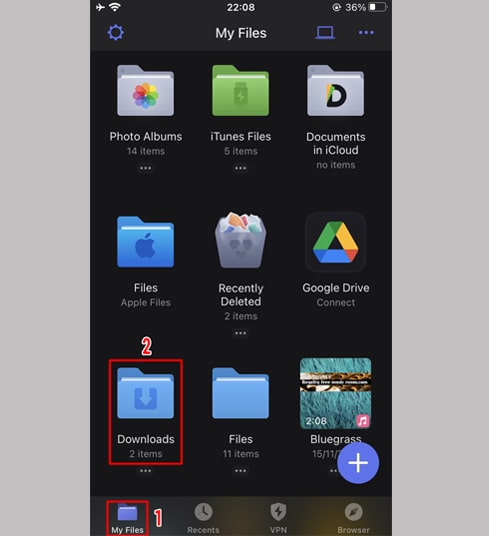
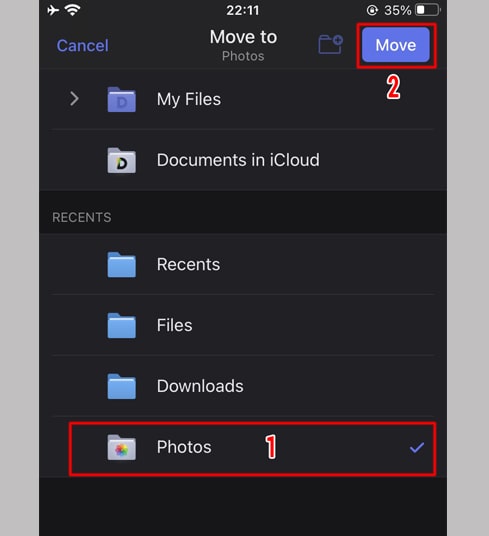
Step 6: in Downloads tap the three dots, choose Move and select Photos.
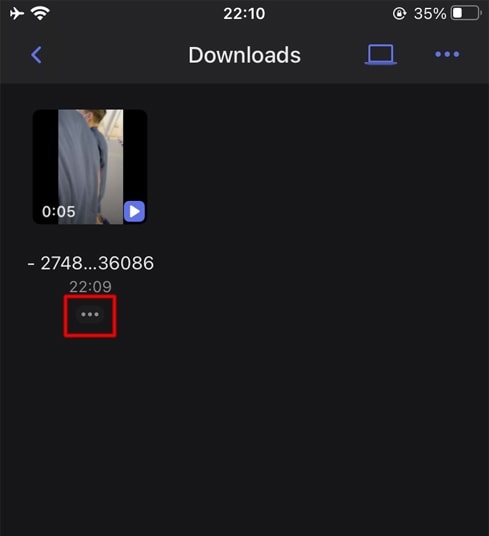
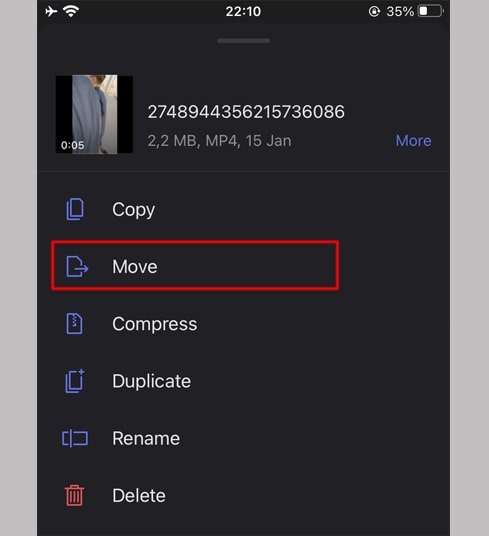
Step 7: open Photos and play the video.
Notes and troubleshooting
- Only public accounts can be resolved - private posts are never bypassed
- If a download fails, copy a fresh link: Instagram media URLs expire after a few hours
- Safari asking about multiple files? Allow downloads in Settings - Safari - Downloads
- The file stays in Files until you save it from the share sheet
- Screenshots above are placeholders until you add your own captures
Still stuck? Write to support [at] getmeinsta [dot] com or use the contact page.